Wednesday, December 22, 2010
De-Activate Iphone
InstallationThis will allow you to do official activation on an iPhone without a stock SIM - it MAY help with Battery Drain issues, but that is NOT the primary purpose of this.
This is pointless on anything but an iPhone
•Add http://repo.bingner.com as a repo in Cydia
•Install "SAM" and "SAMPrefs"
•Follow the steps in Troubleshooting/Hacktivated with redsn0w or PwnageTool
•Go to Settings > SAM and touch "De-Activate iPhone"
•Activate with iTunes
If iTunes says invalid SIM, you will need to manually select the appropriate carrier (Original seller of the iPhone) under one of the methods besides "Automatic" and click on a SIMID.
TroubleshootingHacktivated with redsn0w or PwnageTool:
•Option #1: Click "Revert Lockdownd to Stock" in Settings>SAM
•Option #2: redsn0w for iPhone 3G or 3GS on firmware 4.0 or later
1.Download redsn0w 0.9.6b6 or later from http://blog.iphone-dev.org
2.Run redsn0w and select the "Deactivate" option
•Option #3: my custom stockify program - works on any phone 3.0+ (same as #1)
1.With SAM and SAMPrefs installed; install openssh and secure shell into your phone. Run "stockify" and it will revert your lockdownd to a stock lockdownd
2.Reboot your phone
iPhone goes to FactoryActivated when you click "deactivate"
•If you have jailbroken with pwnagetool or redsn0w follow the instructions under "Hacktivated with redsn0w or PwnageTool"
•If you have jailbroken with GreenPoison or Limera1n after installing SAM (WHYWHYWHYWHY?) you need to reinstall SAM
This is pointless on anything but an iPhone
•Add http://repo.bingner.com as a repo in Cydia
•Install "SAM" and "SAMPrefs"
•Follow the steps in Troubleshooting/Hacktivated with redsn0w or PwnageTool
•Go to Settings > SAM and touch "De-Activate iPhone"
•Activate with iTunes
If iTunes says invalid SIM, you will need to manually select the appropriate carrier (Original seller of the iPhone) under one of the methods besides "Automatic" and click on a SIMID.
TroubleshootingHacktivated with redsn0w or PwnageTool:
•Option #1: Click "Revert Lockdownd to Stock" in Settings>SAM
•Option #2: redsn0w for iPhone 3G or 3GS on firmware 4.0 or later
1.Download redsn0w 0.9.6b6 or later from http://blog.iphone-dev.org
2.Run redsn0w and select the "Deactivate" option
•Option #3: my custom stockify program - works on any phone 3.0+ (same as #1)
1.With SAM and SAMPrefs installed; install openssh and secure shell into your phone. Run "stockify" and it will revert your lockdownd to a stock lockdownd
2.Reboot your phone
iPhone goes to FactoryActivated when you click "deactivate"
•If you have jailbroken with pwnagetool or redsn0w follow the instructions under "Hacktivated with redsn0w or PwnageTool"
•If you have jailbroken with GreenPoison or Limera1n after installing SAM (WHYWHYWHYWHY?) you need to reinstall SAM

Tuesday, December 21, 2010
How to Add a Firmware Bundle to PwnageTool
These are instructions on how to add a firmware bundle to PwnageTool.
You may need to do this to add the unofficial iPhone Dev-Team bundle that will let you create a custom ipsw for the old bootrom iPhone 3GS that won't update your baseband when upgrading to iOS 4.2.1.
Step One
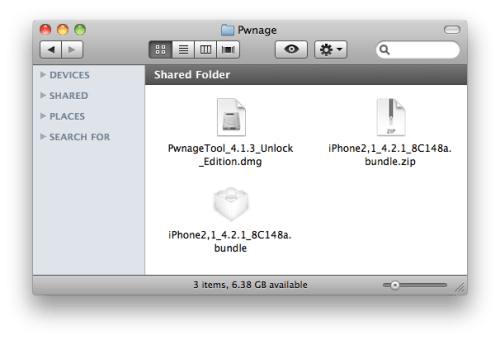
Make a folder called "Pwnage" on the desktop. Download PwnageTool 4.1.3 into the folder.
You will also need to get the minimal iPhone 3GS bundle from here. Double click to extract it to the Pwnage folder.
Step Two
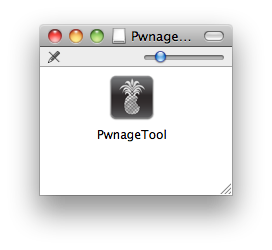
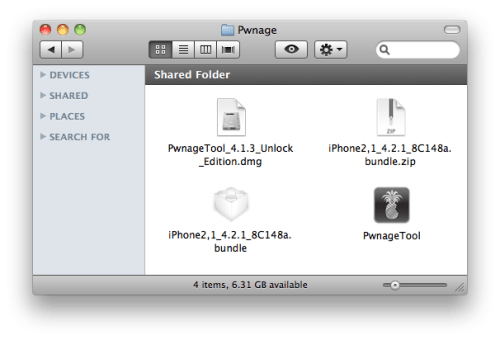
Double click to mount PwnageTool then drag the PwnageTool icon into the Pwnage folder.
Step Three
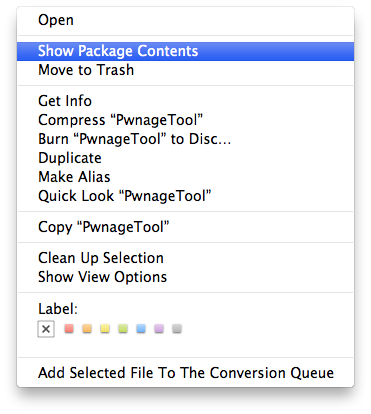
Right click the extracted PwnageTool app and choose Show Package Contents from the menu that appears.
Step Four
Navigate to Contents/Resources/FirmwareBundles/
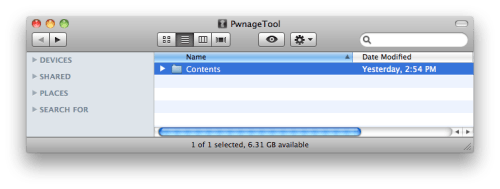
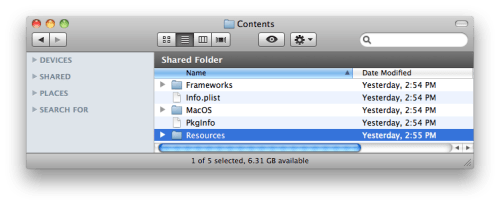
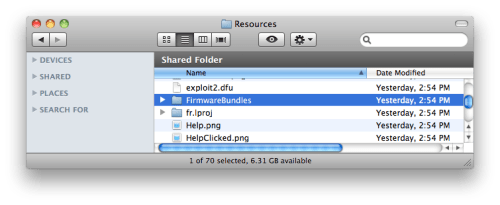
Step Five
Copy and paste the iPhone2,1_4.2.1_8C148a.bundle from the Pwnage folder on your desktop into the FirmwareBundles folder.
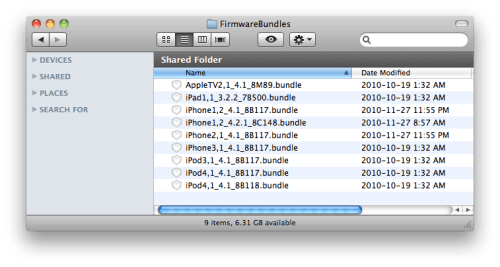
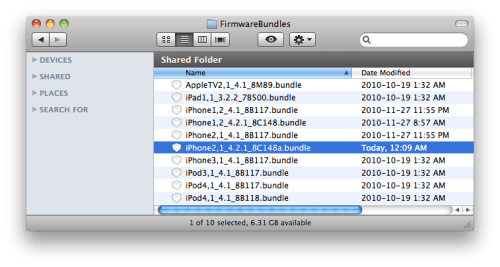
Step Six
You can now launch PwnageTool from the Pwnage folder on your desktop and the application will detect your new firmware bundle.
You may need to do this to add the unofficial iPhone Dev-Team bundle that will let you create a custom ipsw for the old bootrom iPhone 3GS that won't update your baseband when upgrading to iOS 4.2.1.
Step One
Make a folder called "Pwnage" on the desktop. Download PwnageTool 4.1.3 into the folder.
You will also need to get the minimal iPhone 3GS bundle from here. Double click to extract it to the Pwnage folder.
Step Two
Double click to mount PwnageTool then drag the PwnageTool icon into the Pwnage folder.
Step Three
Right click the extracted PwnageTool app and choose Show Package Contents from the menu that appears.
Step Four
Navigate to Contents/Resources/FirmwareBundles/
Step Five
Copy and paste the iPhone2,1_4.2.1_8C148a.bundle from the Pwnage folder on your desktop into the FirmwareBundles folder.
Step Six
You can now launch PwnageTool from the Pwnage folder on your desktop and the application will detect your new firmware bundle.
How to Jailbreak iPhone 4 4.2.1 iOS & Preserve Baseband 02.10.04 with PwnageTool Bundle
Redsn0w 0.9.6B4 can jailbreak iOS 4.2.1 on iPhone 4 but for that you need to update your iPhone 4to iOS 4.2.1 which will upgrade its baseband leaving you in locked state since Ultrasn0w doesn’t support iOS 4.2.1 baseband yet.
If want to unlock your iPhone 4 4.2.1 iOS then either you wait till Ultrasn0w iOS 4.2.1 unlock tool is released or create iOS 4.2.1 custom firmware using PwnageTool to preserve baseband. You might argue PwnageTool for iOS 4.2.1 is not released then how we can create custom firmware ? Well using unofficial PwnageTool Bundles.
The guys over at FSMdotCom have come up with their own PwnageTool bundles for iPhone 4 iOS 4.2.1 which can be used to create custom firmware to jailbreak iPhone iOS 4 4.2.1.

Please keep in mind: The jailbreak will be still tethered one and you won’t be able to use Redsn0w 0.9.6B4 to boot into tethered mode. This method is not tested also we are not sure how it may affect your iPhone 4. You should only proceed at your own risk. We will not be responsible for any damage to your iPhone 4. This guide is only for Mac users.
Stuff Needed
How to Jailbreak iPhone 4 4.2.1 iOS with PwnageTool Bundles
1. Download all the required stuff and put it on your desktop.

2. Right Click on PwnageTool App & select shown Package content & Browse to Contents>Resources>Firmware Bundles> and copy the iOS 4.2.1 bundle you downloaded

3. Now close the window, load PwnageTool and create your custom firmware for iOS 4.2.1 ( Do make sure you install OpenSSH in the process ).


4. Once you have the custom firmware, start iTunes and click alt+restore ( hold the alt/option key and click on restore )
5. Browse for the iOS 4.2.1 custom firmware you just cooked in step 3, select it, and wait for your iPhone 4 to be restored to this firmware.
6. We have done it. Now you have a jailbroken iPhone 4 running on iOS 4.2.1 – except your iPhone won’t boot in the jailbreaking kernel and.
Here is guide to tethered boot your iPhone 4 iOS 4.2.1 which will be required every time you reboot your iPhone 4.
How to Tethered boot iPhone 4 4.2.1 iOS
1. Download & install MacPorts
2. Install libUSB. Open terminal
sudo port install libusb
3. Duplicate your custom firmware and create a folder on your desktop called ‘ Tethereboot’ ( or whatever you want to call it – doesn’t matter )
4. Download the Thetherboot utility and put it in the Tethereboot folder
5. Take the duplicate custom firmware, change the extension from .ipsw to .zip and unzip

6. Inside there’s two files that you need:
1. iBSS.n90ap.RELEASE.dfu2. kernelcache.release.n90
Take them out and put them in the Tetherboot folder alongside the tethereboot utility you just downloaded

7. Open Terminal , put your iPhone in DFU mode and type:
cd /User/Desktop/Tetherboot/./tetheredboot iBSS.n90ap.RELEASE.dfu kernelcache.release.n90
8. Ok, that’s it. Your iPhone 4 will boot into the tethered boot mode
9. Follow our guide to Manually update & install new Cydia 1.0.3366 on your iPhone 4 iOS 4.2.1.
Thanks to FSMdotCom for this guide and required stuff.
How To Update iPhone 4 To iOS 4.1 Without Upgrading Baseband 1.59.00 To 2.10.04
Apple has today released iOS 4.1 for iPhone 4, 3GS, 3G, and iPod Touch 2G, 3G, with iOS 4.1 for iPod Touch 4G being released much earlier. This latest firmware update brings in some cool features such as Game Center, HDR photography, and HD video uploading to YouTube does not yet have a confirmed jailbreak tool.
Upgrade To iOS 4.1 – Jailbreak And Unlock Possibilities
For all those who are unable to resist from upgrading their firmware to iOS 4.1, here is all the information you need to know about iOS 4.1 jailbreak and unlock. As of now there is no confirmed jailbreak for iOS 4.1. The last firmware that has a jailbreak is iOS 4.0.1, and after that Apple has fixed the PDF exploit in iOS 4.0.2, thus making JailbreakMe 2.0 Star all device jailbreak non-functional.
Those who saved their SHSH blobs via Cydia can easily downgrade iOS 4.0.2 to iOS 4.0.1. Not saved your ECID SHSH or got a brand new iPhone 4? Follow this guide to downgrade iOS 4.0.2 to iOS 4.0.1 without SHSH blobs, which some users are claiming success.
iPhone 3G and 3GS users on iOS 4.0.2 have some respite in Redsn0w 0.9.5b5-5 and PwnageTool, with a later unlocking using Ultrasn0w 1.1. However it needs to be checked if these tools still work for iOS 4.1.
Save SHSH Blobs Using TinyUmbrella Now!
First of all, save your SHSH blobs using TinyUmbrella (see steps below) on your current jailbrokenfirmware. If you want to later downgrade your firmware, say to iOS 4.0.1 or iOS 4 then you need to have SHSH blobs saved.
1. Download TinyUmbrella (links at bottom) for Windows, Linux, or Mac OSX (links at bottom). Mac users, drag drop the DMG file to your desktop or applications folder, or you will encounter repeated password prompts.
2. Run the application. If Windows Firewall asks for confirmation, then click ‘Allow access’.
3. Have iTunes installed on your PC and running.
4. Connect your device (iPhone 4, 3GS/3G, iPod Touch 4G/3G/2G, iPad) and wait for TinyUmbrella detect it.
5. Then click on ‘Save My SHSH’ button.
That’s it. TinyUmbrella will grab your device’s ECID SHSH and save it locally as well as generate a ticket to for saving to Cydia.
iOS 4.1 Baseband Update
Now here is something really important you should know. iOS 4.1 brings in a baseband update. The new baseband 2.10.04 is not yet supported by Ultrasn0w 1.1-1. This means that you cannot unlock your device even when a new jailbreak is released in the coming days for iOS 4.1, if your baseband is upgraded (which will be if you update to iOS 4.1). Is there a way to upgrade to iOS 4.1 without updating to baseband 2.10.04? Luckily for us, the answer is yes.
How To Stop Baseband Update 2.10.04 And Preserve Current Baseband On iPhone 4
!Important: This method is for iPhone 4 ONLY. It does not work on iPhone 3GS or 3G.
Thanks to the latest version of TinyUmbrella with iOS 4.1 support, you can upgrade your firmware without upgrading the baseband (iPhone 4 only). Here is how you can preserve your baseband while updating to iOS 4.1:
1. Download the latest version of TinyUmbrella 4.1.3 (download links at end).
2. Run TinyUmbrella. Allow access if Windows Firewall asks for confirmation.
3. Start TSS server in TinyUmbrella. If iTunes is running, then this will be killed.

4. Launch iTunes, connect your device to your Computer and then click SHIFT (ALT on Mac) + ‘Restore’ in iTunes (not the Update button). You will get a 3002 error if you have clicked the Update button instead of Restore.
5. Browse and select the iOS 4.1 IPSW file for your device and let iTunes restore to this firmware.
6. iTunes should throw up error 1004, ‘Baseband Update failed’. Or else you know it’s a failure!
7. Now you need to exit recovery mode in iTunes. Click on ‘Kick device out of recovery mode’ in TinyUmbrella.
This is it! Once your iPhone 4 restarts, you will find it on iOS 4.1 with the older 1.59.00 baseband !
Download TinyUmbrella 4.1.3 Windows
Download TinyUmbrella 4.1.3 Linux
Download TinyUmbrella 4.1.3 Mac OSX
Update
Download TinyUmbrella 4.1.5 with Apple TV 2G Support.
Download iOS 4.1 For iPhone 4, iPhone 3GS, 3G, iPod Touch 4G, 3G, 2G
Thursday, December 9, 2010
Subscribe to:
Posts (Atom)